MetaTrader 4 Download 2026: Desktop, Mobile and WebTrader
MetaTrader 4 is free to download via PU Prime's official platform page or directly from your device's app store. The platform is available for Windows, iOS, and Android. Before the download is...
Reviewed using our forex & CFD broker review methodology
Checked on: 2026-08-17 | Broker terms, regulation, and pricing can change. Always verify at the official PU Prime site before opening an account.
Affiliate Disclosure: HNL Growth may earn a commission if you open an account through our links, at no additional cost to you. Risk Warning: CFDs and leveraged forex products are complex instruments and carry a high risk of losing money rapidly due to leverage. 62.2% of retail investor accounts lose money when trading CFDs with this provider. Trading forex and CFDs may not be suitable for all investors. Consider your objectives, experience, and risk appetite before trading, and ensure you understand the risks involved. Broker Disclosure: PU Prime is a live, regulated multi-entity broker (not a simulated prop-firm evaluation) — trades are executed with real capital in live market conditions, subject to normal market risk. Which PU Prime entity holds your account depends on your country of residence and determines your leverage cap and protections.
Last verified: August 2026 | Editorial Team
MetaTrader 4 Download 2026: Desktop, Mobile and WebTrader
MetaTrader 4 is free to download via PU Prime's official platform page or directly from your device's app store. The platform is available for Windows, iOS, and Android. Before the download is useful, you need a PU Prime account — demo or live — because MT4 connects to markets through your broker's server, not independently. Once you have your account credentials and your PU Prime server name, setup takes around five minutes. This article walks you through each device path, first-time login including server selection, and a quick checklist to confirm everything is working before you place your first trade.
Disclosure: This page may contain affiliate links. We may earn a commission if you open an account through our links, at no extra cost to you.
Before You Download: One Prerequisite
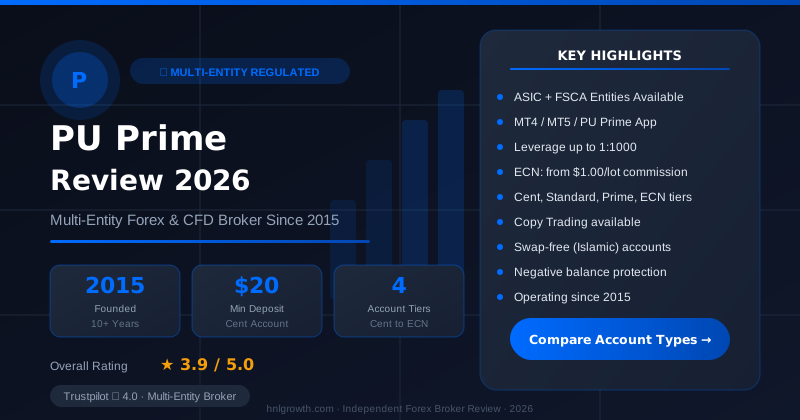
PU Prime — Multi-Entity Forex & CFD Broker
ASIC (AU) + FSCA (ZA) entities available · $20 min deposit (Cent) · MT4, MT5, PU Prime App · 4 account tiers
MT4 without a broker account is a shell. The platform connects to live or demo markets through PU Prime's servers — without an account, you have no server credentials to log in with.
If you do not yet have a PU Prime account, open one before or during the install. A demo account is free and gives you a practice environment with real market prices to test your setup before committing capital.
Open a PU Prime demo or live account
Download MT4 for Your Device
Minimum system requirements vary by platform. The table below gives you a quick pre-download check.
| Device | Minimum OS | Download source |
|---|---|---|
| Windows | Windows 7 or later (64-bit recommended) | puprime.com/mt4/ |
| Mac | No native MT4 installer — see section below | Web terminal or MT5 recommended |
| iPhone / iPad | iOS 12.0 or later | Apple App Store |
| Android | Android 5.0 or later | Google Play Store |
Note: Verify current minimum OS requirements at puprime.com/mt4/ before installation, as MetaQuotes may update these.
Windows — download and install
- Go to puprime.com/mt4/ and click the MT4 download button for Windows.
- Run the installer file once it downloads. If your antivirus flags it, this is a known false-positive behaviour with broker-distributed MT4 installers. Only download from the official PU Prime page — not from third-party sites — and verify the URL before proceeding.
- Follow the on-screen prompts. The installer sets up the platform and creates a desktop shortcut automatically.
- On first launch, MT4 opens a server-selection window — see the First Login section below before entering any credentials.
MT4 on Windows updates automatically in the background. You do not need to reinstall the platform to stay current; the broker-distributed build handles updates without manual intervention.
Download MT4 for Windows via PU Prime
Mac — what to expect before you start
PU Prime does not currently distribute a native Mac installer for MT4. If you are on macOS, your practical options are:
- Use MetaTrader Web (WebTrader): Accessible directly from a browser on any device without installation. You use the same PU Prime login credentials. Suitable for traders who do not rely on Expert Advisors or custom indicators. This is PU Prime's recommended browser-based path for Mac users.
- Use MT5 on Mac: PU Prime offers MT5 and a native MT5 Mac build is available. If you are not locked into MT4-specific EAs or MQL4 strategies, MT5 on Mac is the more straightforward path and the route PU Prime recommends for new traders on macOS.
- Run MT4 via a compatibility layer: Tools such as Wine or CrossOver allow some Windows applications to run on macOS. This approach is not officially supported by PU Prime — meaning PU Prime's support team cannot assist with configuration problems that arise from these tools. Compatibility with specific PU Prime MT4 builds, indicators, or charting features is not guaranteed. Use this route only if you have a specific existing MQL4 dependency and are comfortable with the additional configuration involved.
If your workflow depends specifically on MT4 and you are on a Mac, the web terminal covers the core trading functions. If you need EA automation on Mac, the supported route is MT5.
Explore platform options at PU Prime
iPhone and iPad
- Open the App Store and search for MetaTrader 4 by MetaQuotes.
- Download and install the app (it is free).
- On first open, tap Settings → New Account → Login to an Existing Account and search for PU Prime in the server list. See the First Login section for how to find the correct server name.
After login, your open positions, pending orders, and account balance are accessible from the app. Note that Expert Advisors and custom indicators are not available on the mobile app — see the multi-device section for detail on what does and does not sync.
PU Prime also offers its own proprietary trading app at puprime.com/trading-app/, which covers the same markets through a different interface. If you want the full MT4 environment on mobile, use the MetaTrader 4 app.
Open a PU Prime account to activate your MT4 login
Android
- Open Google Play and search for MetaTrader 4 by MetaQuotes.
- Install and open the app.
- Tap the menu icon → Manage Accounts → Add Account (Login to an Existing Account) and search for PU Prime in the broker/server list. See the First Login section for how to find the correct server name.
Open a PU Prime account to activate your MT4 login
First Login: Connecting to PU Prime's Server
This is where most traders hit their first wall. MT4 does not automatically know which broker you are trading with — you have to select the correct server on first login. Choosing the wrong one means your credentials will fail even if your account details are correct.
Where to find your server name
Your PU Prime server name appears in:
- Your account confirmation email from PU Prime after registration
- The PU Prime client portal (the web dashboard you access after logging in to your PU Prime account at puprime.com)
- The puprime.com/mt4/ platform page
Always use the server name from one of these official sources. PU Prime operates multiple servers and the exact strings can vary — do not assume a server name from a third-party source or a generalised example. Demo and live accounts connect to different servers, so confirm which account type you are logging into before selecting.
Desktop login walkthrough
- Launch MT4 on Windows. On first open, a Server selection dialogue appears automatically.
- In the search box, type PU Prime or PUPrime. A list of available servers populates below.
- Select the server matching your account type (Live or Demo) as shown in your confirmation email or client portal. If multiple servers appear, your account email will specify which one your account sits on.
- Click Next, then enter your account number (login ID from your confirmation email) and password.
- Click Sign In. The bottom right of the MT4 window should show Connected within a few seconds.
If you cannot find PU Prime in the server list, type the full server name string from your confirmation email directly into the search field rather than a partial name.
Mobile login walkthrough
On iOS (MetaTrader 4 app):
- Open the app → tap the Settings icon (bottom right) → New Account → Login to an Existing Account
- In the search field, type PU Prime. Select the correct server (Live or Demo) from your confirmation email.
- Enter your account number and password → tap Sign In
On Android (MetaTrader 4 app):
- Tap the menu icon (top left) → Manage Accounts
- Tap the + icon → Login to an Existing Account
- Search for PU Prime, select your server, enter credentials, and confirm
The same account number and password work on both desktop and mobile. You do not need separate credentials for each device.
Note: PU Prime's servers may have regional variations. If a server that appears in the list does not accept your credentials, confirm the correct server for your account in the client portal before contacting support.
Open a PU Prime demo account to test your login setup
MT4 or MT5: Which One to Download
If you are unsure which platform to download, this section gives you the information to decide. Both are available through PU Prime and both are free. The choice matters because the platforms have different features and because your tools — particularly Expert Advisors — are not portable between them.
| Feature | MT4 | MT5 |
|---|---|---|
| Instruments via PU Prime | Forex, indices, commodities, metals (CFDs) | Forex, indices, commodities, metals, shares, ETFs, bonds, synthetic indices (CFDs) |
| Order types | Market, limit, stop, stop-limit | Market, limit, stop, stop-limit, plus additional pending order types |
| Timeframes | 9 | 21 |
| Expert Advisors / automated trading | MQL4 EAs — large existing library | MQL5 EAs — not interchangeable with MQL4 |
| Strategy tester | Single-currency back-testing | Multi-currency, multi-asset back-testing |
| Mobile app | MetaTrader 4 app (iOS / Android) | MetaTrader 5 app (iOS / Android) |
| Web terminal | Available via PU Prime | Available via PU Prime |
| Native Mac installer | Not available from PU Prime | Available |
| Best suited for | Traders with existing MQL4 EAs or strategies; forex-focused workflows | Traders who want a wider instrument range, more timeframes, multi-asset back-testing, or Mac compatibility |
Data sourced from puprime.com/mt4/ and puprime.com/mt5/. Instrument availability should be confirmed on official pages before trading.
When MT4 is the better fit
Choose MT4 if you already have MQL4 Expert Advisors or custom indicators you rely on — migrating these to MT5 requires rewriting in MQL5, which is a separate task. MT4 also suits traders who prefer a simpler charting environment and whose trading is concentrated on the forex pairs and commodity or metals markets available through PU Prime's MT4 instrument list. The platform's longevity means the community resource base (EAs, scripts, indicator code) is extensive.
When MT5 makes more sense
Choose MT5 if you want access to PU Prime's full instrument range including shares, ETFs, and bonds alongside forex. MT5 offers more order types and 21 timeframes versus MT4's 9, which matters for certain strategy types. The multi-currency strategy tester is more capable for traders who back-test across instrument sets. MT5 is also PU Prime's recommended path for new traders without an existing platform dependency, and it is the practical solution for Mac users since a native Mac installer is available.
A note on MT4's development trajectory
MetaQuotes, the company that develops MT4, has publicly indicated that MT4's active development has wound down and new broker licensing was paused, with MT5 as the actively developed successor. This does not affect existing MT4 functionality at PU Prime, but traders building new strategies from scratch may find MT5's toolset more future-proof. Confirm MetaQuotes' current position at metaquotes.net if this affects your decision.
The two platforms are separate installs and you can run both using the same PU Prime account credentials — you simply select the corresponding server for each platform on login.
Understanding trading costs across account types
Trading costs at PU Prime vary by account type and instrument. The main cost components are spreads and, on some account types, commissions. For current spread and commission figures by account and instrument, see puprime.com/spread-and-costs/. All values on that page are reference figures — check MT4, MT5, or the PU Prime mobile app for live pricing before placing a trade.
As a general framework for comparing cost structures: Standard accounts typically incorporate costs into the spread with no separate commission; Prime and ECN accounts may offer tighter spreads with a per-trade commission. The total cost per trade is spread plus any applicable commission — comparing on spread alone across account types can be misleading.
Open a Demo Account Through MT4
A demo account uses real market prices but virtual capital. It lets you confirm your platform setup is working, familiarise yourself with the MT4 interface, and test any strategies before trading with real money.
Activating a demo from within the platform
On desktop, MT4 offers a demo account registration path:
- In MT4, go to File → Open an Account
- Search for PU Prime in the server list and select the Demo server
- Fill in the registration fields (name, email, account currency, leverage) and click Next
- MT4 generates a demo account number and password automatically — save these
Note: the in-platform demo registration flow may vary depending on your MT4 build version and region. If this path is unavailable, open your demo account via puprime.com/how-to-open-a-trading-account/ and then use the issued credentials to log in to the platform.
When you are ready to move to a live account
PU Prime's live account minimum deposits start at $20 for a Cent account and $50 for a Standard account (figures sourced from puprime.com/how-to-open-a-trading-account/ — verify current minimums on that page before depositing). Account opening requires identity verification: a valid government-issued ID and a proof-of-address document dated within the last three months. Verification typically takes a few hours on business days.
Open a live PU Prime account when you are ready to trade
Using MT4 Across Desktop and Mobile
MT4 is designed for multi-device use. Your account exists on PU Prime's servers, and both your desktop and mobile installations connect to the same account — they do not store your trading data locally in a way that creates conflicts between devices.
What syncs via PU Prime's servers
- Open positions are reflected on both desktop and mobile when both are connected to the same account and server
- Closed trade history is accessible on both platforms
- Pending orders placed on one device appear on the other when connected
- Account balance and equity update when the platform refreshes its connection
Note: real-time display depends on your device maintaining an active connection to PU Prime's servers. Brief sync delays can occur if a connection drops and reconnects.
What stays on desktop only (EAs, custom indicators)
Expert Advisors and custom indicators installed on the desktop version of MT4 are stored locally in your Windows file system. They do not transfer to the mobile app. This is a structural characteristic of the MT4 platform architecture, not specific to PU Prime.
If you rely on automated EA strategies, the desktop is your execution environment. The mobile app is best used for monitoring positions, checking quotes, and placing manual orders when away from your desktop.
Custom indicator files (.ex4 or .mq4) are installed by placing them in the Indicators folder of your MT4 directory on Windows, then restarting the platform. They appear in the Navigator pane under Custom Indicators after restart.
When to use the web terminal instead
PU Prime's MetaTrader Web (WebTrader) is accessible from any browser without installation. It is useful when:
- You are on a device where you cannot install software (work computer, shared device)
- You are temporarily on a Mac and want MT4-style access without setting up a compatibility layer
- You need a quick trade check or position adjustment and do not have the desktop app open
The web terminal does not support Expert Advisors or custom indicators. For full platform functionality including EA execution, the desktop installation remains the primary environment.
Confirm Your Setup Is Working
Before placing your first real trade, run through this checklist. Each item confirms a different layer of your setup.
Post-install verification checklist (Windows desktop)
- The status bar at the bottom right of MT4 shows Connected (not "No connection" or "Disconnected")
- Market Watch (View → Market Watch) displays live bid/ask prices with updating timestamps
- The Terminal window (View → Terminal → Account) shows your account balance and currency
- You can open and close a demo trade without an error message
- The MT4 mobile app is logged in and shows the same open positions as desktop
Mobile verification (iOS and Android)
- The app shows "Connected" or a green connection indicator in the account view
- Market Watch displays updating prices
- Account balance matches the figure shown on desktop
You are ready to trade when all applicable items pass for your device.
Common problems and how to fix them
| What you see | Likely cause | Fix |
|---|---|---|
| "No connection" or offline status indicator | Wrong server selected, or firewall/antivirus blocking MT4's outbound connection | Re-check server name against your account confirmation email or client portal; add MT4 as a firewall exception or temporarily disable the firewall to test. Download only from the official PU Prime page if the issue appeared immediately after install. |
| "Invalid account" error on login | Account number or password entered incorrectly, or wrong server type selected (e.g., Live server with Demo credentials) | Confirm account number from your PU Prime confirmation email; reset your password via the client portal if needed; confirm that the server type (Live/Demo) matches your account type. |
| Charts loading but showing a grey screen or no data | Historical data not yet downloaded for that instrument, or symbol not available on your account's server | Right-click the chart → Refresh. If data still does not load, go to Tools → History Centre and manually request data for the symbol. Note that the History Centre approach applies to the Windows desktop platform; on mobile, try closing and reopening the chart. If the symbol is absent from Market Watch entirely, right-click Market Watch → Show All to find it, or confirm the instrument is available on your specific account type and server. |
If issues persist after these steps, PU Prime offers 24/7 customer support accessible from the main site.
Frequently Asked Questions
Is MT4 free to download? Yes. MetaTrader 4 is free to download via PU Prime's platform page or from the App Store and Google Play. Trading costs come from spreads and commissions on trades, not from the software itself. Spread and commission details by account type are available at puprime.com/spread-and-costs/.
Do I need a PU Prime account before I download MT4? The download itself does not require an account, but you cannot log in or access markets without one. Opening a free demo account takes a few minutes and gives you a login, server name, and practice environment.
Does MT4 update automatically? Yes. The broker-distributed MT4 build updates automatically on Windows. You do not need to uninstall and reinstall the platform to stay on the current version.
Can I use the same login for MT4 desktop and MT4 mobile? Yes. Your account number and password work on both the desktop and mobile MT4 apps. Open positions and account history are accessible on both when connected.
Is MT4 safe to download from PU Prime? MT4 is developed by MetaQuotes. When you download through PU Prime's official page (puprime.com/mt4/), you receive a broker-distributed build. PU Prime states it operates under regulatory oversight from multiple financial authorities — see puprime.com/regulation/ for the current list of licensed entities and which applies to your jurisdiction. Applicable regulation and protections depend on your country of residence.
Is MT4 still worth using in 2026? MT4 remains a practical choice for traders with existing MQL4 Expert Advisors, custom indicators, or strategies built in that environment. MetaQuotes has publicly indicated that MT4's active development has wound down, with MT5 as its actively supported successor — verify this position at metaquotes.net if it affects your planning. For traders without an existing MT4 dependency, MT5 offers more instruments, timeframes, and order types at PU Prime. The right choice depends on your tools and workflow, not on which platform is newer.
Can I run MT4 on a Mac? PU Prime does not currently offer a native Mac installer for MT4. Mac users can use the MetaTrader Web terminal (browser-based, no install required), download MT5 which has a native Mac build, or attempt to run MT4 via a compatibility layer such as Wine or CrossOver. The compatibility layer route is not officially supported by PU Prime — configuration problems are outside their support scope and compatibility is not guaranteed.
How do I find the correct PU Prime server name for MT4 login? Your server name appears in your PU Prime account confirmation email and in the client portal. On the MT4 server selection screen, search for "PU Prime" or "PUPrime" to populate the available server list. Always confirm the exact server string from your email or portal rather than assuming a name from a third-party source.
Can I have a demo and a live account on MT4 at the same time? Yes. MT4 allows multiple account profiles. You switch between them via File → Login to Trade Account or by managing accounts in the Navigator panel. Demo and live accounts connect to separate servers.
Do EAs on MT4 desktop work on the mobile app? No. Expert Advisors and custom indicators installed on the desktop version are stored locally on your Windows machine and do not sync to the mobile app. EA execution requires the desktop platform to be running.
Risk warning: CFDs and leveraged forex products are complex instruments and carry a high risk of losing money rapidly due to leverage. Consider whether you understand how these products work and whether you can afford to take the high risk of losing your capital. Check the entity, terms and protections that apply in your jurisdiction before trading. Regulatory oversight depends on your country of residence — see puprime.com/regulation/ for applicable entities.
Ready to Compare PU Prime Account Types?
PU Prime is a multi-entity broker — ASIC (Australia) and FSCA (South Africa) regulated entities offer stronger oversight, while most international clients are onboarded to the FSA Seychelles or FSC Mauritius entities. Four account tiers (Cent, Standard, Prime, ECN) range from a $20 minimum deposit to full ECN pricing.
Risk disclaimer: PU Prime is a live, regulated multi-entity broker — trading forex and CFDs is done with real capital under normal market risk (this is not a simulated prop-firm evaluation). PU Prime operates under multiple separate licenses (ASIC, FSCA, FSA Seychelles, FSC Mauritius); which entity holds your account depends on your country of residence and determines your leverage cap and protections — confirm this before funding. CFDs and leveraged forex products are complex instruments and carry a high risk of losing money rapidly due to leverage; 62.2% of retail investor accounts lose money when trading CFDs with this provider. Consider whether you understand how CFDs/forex work and whether you can afford the high risk of losing your money. Affiliate disclosure: HNL Growth earns a commission when you open a PU Prime account through links on this page.