HFM MT5 2026: Setup and Instruments
HFM officially supports MetaTrader 5 on desktop, web, and mobile, with 500+ tradable instruments and more tools than MT4 offers.
Reviewed by Hà Ngọc Lộc· Senior SEO Editor
Reviewed using our forex & CFD broker review methodology
HFM (HF Markets) officially supports MetaTrader 5 across desktop, web, and mobile. MT5 is available on multiple HFM account types. HFM advertises access to 500+ instruments, including forex, commodities, indices, stocks, bonds, and ETFs. Compared to MT4, MT5 on HFM adds21 timeframes (vs 9), 6 pending order types (vs 4), a built-in economic calendar, depth of market, and a multi-threaded Strategy Tester for backtesting Expert Advisors. Setup requires registering through the myHF client area, selecting MT5 as your platform, and logging in with your assigned credentials and the correct HFM server address. Traders who need broader asset coverage, advanced backtesting, or more charting granularity will find MT5 the stronger choice. Those running established MQL4 Expert Advisors should weigh the migration effort before switching.
HFM MT5 — Availability, Entities and Regulation
HFM's MT5 platform is confirmed on the official HFM MT5 platform page and listed in the MetaQuotes broker directory. However, the specific terms, instruments, and protections you receive depend on which HFM legal entity onboards you.
The HF Markets Group operates through multiple entities:
- HF Markets (Europe) Ltd — regulated by CySEC (licence 183/12). Currently accepts only Eligible Counterparties and Professional per se clients. Retail traders in the EU are directed to the hfeu.com domain.
- HF Markets (UK) Ltd — regulated by the FCA. Subject to FCA leverage caps (1:30 for retail forex) and client money rules.
- HF Markets (SV) Ltd — incorporated in St. Vincent & the Grenadines (registration22747IBC2015). This entity operates the international website.
- HFM's website indicates additional regulatory presence in Dubai (DFSA), South Africa (FSCA), and Kenya (CMA). Verify directly with HFM which entity and regulatory framework apply in your jurisdiction.
MT5 availability, maximum leverage, instrument counts, and investor protections vary by entity. Traders should confirm which entity they will be onboarded under before depositing, as this determines the regulatory framework governing their account.
HFM does not offer services to residents of the USA, Canada, Sudan, Syria, Iran, North Korea, UAE, Türkiye, and certain other jurisdictions.
Getting MT5 Running on HFM
Step 1 — Open an HFM Account and Select MT5
- Visit the HFM registration page and create a myHF account using your email address.
- Complete identity verification by submitting the required documents (typically government-issued ID and proof of address).
- In the myHF client area, select Open New Trading Account.
- Choose MetaTrader 5 as the platform.
- Select your preferred account type (Premium, Zero, Premium Pro, or other available types).
- Choose between a Live or Demo account. Demo accounts use virtual funds — no real capital is involved on a demo account.
- Once approved, your MT5 login credentials (account number, password, and server name) will appear in the myHF client area.
Step 2 — Download and Install MT5 for Desktop
- In myHF, locate the MT5 download link or download directly from the HFM MT5 terminal page.
- Run the installer. The HFM-branded MT5 terminal installs with pre-configured server addresses.
- On first launch, open File → Login to Trade Account.
- Enter your MT5 login number, password, and select the correct HFM server as shown in your myHF credentials.
- Once connected, the terminal downloads available symbols automatically. Use View → Market Watch to browse and add instruments.
Symbol suffixes matter. Your account type determines which symbols are active on MT5:
| Account Type | Symbol Suffix | Example |
|---|---|---|
| Zero | b |
EURUSDb, XAUUSDb |
| Premium | No suffix | EURUSD, XAUUSD |
| Premium Pro | .V |
EURUSD.V, XAUUSD.V |
To add symbols: right-click in Market Watch → Symbols → search for instruments matching your account suffix → click Show Symbol.
Step 3 — Use MT5 WebTerminal Without Installing Anything
HFM WebTrader provides browser-based access to your MT5 account with cross-device sync. Open the WebTrader link from your myHF dashboard, enter your MT5 credentials, and trade directly from any modern browser.
WebTrader supports MT5 account management, trade execution, and position monitoring. However, it does not support Expert Advisors, custom indicators, or the Strategy Tester — these require the desktop terminal.
Step 4 — Set Up MT5 on Mobile
- Download MetaTrader 5 from the Apple App Store or Google Play Store.
- Open the app and tap Settings → Accounts → + (or the equivalent on your device).
- Search for HFM or HF Markets as the broker.
- Select the correct HFM server matching your myHF credentials.
- Enter your MT5 login number and password.
The HFM App (HFM's proprietary mobile application) also supports MT5 account access with full trade management functionality, per the official platforms comparison. Choose between the MetaQuotes MT5 app or the HFM App based on your preference for interface and feature depth.
MT4 vs MT5 on HFM — Feature-by-Feature Breakdown
Comparison Table
| Feature | MT4 on HFM | MT5 on HFM |
|---|---|---|
| Timeframes | 9 | 21 |
| Built-in indicators | 30 † | 38 |
| Analytical objects | 24 † | 44 |
| Pending order types | 4 | 6 |
| Simultaneous charts | Not specified in HFM docs ‡ | Up to 100 |
| Strategy Tester | Single-threaded | Multi-threaded |
| Depth of Market | No | Yes |
| Built-in economic calendar | No | Yes |
| EA language | MQL4 | MQL5 |
| Hedging mode | Yes | Yes |
| Instrument coverage | Forex, metals, energies, indices | All classes including stocks, bonds, ETFs |
† MT4 indicator count (30) and analytical objects (24) reflect standard MetaQuotes platform defaults; these figures are not confirmed by HFM-specific official documentation. ‡ The MT4 simultaneous chart limit is not specified in HFM's official documentation. MT5 figures sourced from HFM platforms comparison and HFM MT5 terminal page.
Trading-Style Decision Matrix
| Trading Style | Recommended Platform | Recommended Account Type | Key Reason |
|---|---|---|---|
| Scalper | MT5 | Zero | 6 pending order types, depth of market, spreads from 0.0 pips |
| Day Trader | MT5 | Premium | 21 timeframes, 100 simultaneous charts, built-in economic calendar |
| Swing Trader | MT4 or MT5 | Premium | Either platform works; MT5 adds more analytical objects |
| Algo / EA Trader | MT5 | Premium or Zero | Multi-threaded Strategy Tester, MQL5Marketplace access |
| Copy Trader | HFM App | Premium | HFCopy is accessed via the HFM App, not directly through MT5 |
| Beginner | MT4 or MT5 | Premium | Use demo mode first (virtual funds, no real capital involved); MT4 offers a simpler interface for new traders |
Traders already productive on MT4 with simple EA workflows may not need to switch. The decision hinges on whether you need MT5-exclusive features: additional timeframes, depth of market, broader instrument access, or multi-threaded backtesting.
What You Get on MT5 Through HFM
Charting and Analysis Tools
MT5 on HFM provides 21 timeframes (from1-minute to monthly), 38 built-in technical indicators, 44 analytical objects, and the ability to view up to 100 charts simultaneously. Custom indicator support is included, allowing import of third-party .ex5 or .mq5 files.
For comparison, the HFM WebTrader offers 100+ indicators and 80+ analytical objects with17chart types — a broader charting toolkit than the MT5 desktop client for traders who prioritize visual analysis over automation.
Built-In MT5 Features Active on HFM
The following native MT5 features are available on HFM accounts:
- Economic calendar — integrated directly into the terminal for event-driven analysis.
- Depth of Market (DOM) — shows bid/ask volume at each price level.
- Multi-threaded Strategy Tester — runs EA backtests across multiple CPU cores, significantly faster than MT4's single-threaded tester.
- Hedging mode — confirmed on HFM's MT5 terminal, allowing simultaneous long and short positions on the same instrument.
Expert Advisors and Automated Trading
MT5 supports EAs written in MQL5, with access to the MQL5 Marketplace for purchasing or renting third-party strategies. HFM permits EA execution on MT5 accounts.
Important for migrating traders: MQL4 and MQL5 are different languages with different APIs and execution models. Most MT4 Expert Advisors will not run on MT5 without significant rewriting. Check with your EA developer or the MQL5 Marketplace for converted versions before migrating.
For supplementary tools — including third-party plugin suites, automated pattern recognition, or VPS hosting — availability and eligibility conditions are not confirmed in HFM's official documentation reviewed for this article. Verify what is currently offered and any qualifying requirements directly in the myHF client area or with HFM support before relying on them. See the What to Verify Yourself section below.
Instruments and Markets Available on MT5
HFM advertises 500+ trading instruments. MT5 generally provides broader asset class coverage than MT4 within the HFM ecosystem:
| Asset Class | MT5 Availability | MT4 Availability | Notes |
|---|---|---|---|
| Forex pairs | Yes | Yes | Full coverage on both platforms |
| Commodities / Metals | Yes | Yes | Gold, silver, energies included |
| Indices | Yes | Yes | Major global indices |
| Individual stocks | Yes | Limited or unavailable | MT5 typically offers a larger stock CFD selection |
| ETFs / Bonds | Yes | Limited or unavailable | Available on MT5 per HFM platforms comparison |
| Crypto CFDs | Confirm with your entity | Confirm with your entity | Availability and conditions vary by HFM entity; verify before trading |
Exact instrument counts change over time and vary by entity. The table above reflects information available at the time of writing. Verify the current list in the MT5 Market Watch window after connecting to your account, or check the full symbol list in the myHF client area.
Account Types That Work with MT5
The following account types are available with MT5 on HFM, based on the official trading accounts page:
| Account Type | Min. Deposit | Spread Model | Commission | Max Leverage* | Min Lot Size | Best For |
|---|---|---|---|---|---|---|
| Premium | Varies by entity | Variable, from 1 pip | Included in spread | Jurisdiction-dependent | 0.01 | All-round traders |
| Zero | Varies by entity | From 0.0 pips | Per-lot commission applies | Jurisdiction-dependent | 0.01 | Scalpers, cost-sensitive traders |
| Premium Pro | $5,000 (Professional) | Variable | Included in spread | Up to 1:400 (Professional) | 0.01 | Professional clients |
Maximum leverage depends on your HFM entity and jurisdiction. FCA and CySEC entities are capped at 1:30 for retail forex under ESMA/FCA rules. International entities may offer higher leverage. Always verify the terms that apply to your specific entity before trading.
Switching from MT4 to MT5 on HFM
If you are currently trading on HFM's MT4 and want to move to MT5, follow this migration checklist:
| Step | Action | Notes |
|---|---|---|
| Open MT5 sub-account | Create a new MT5 trading account in myHF | You can run MT4 and MT5 accounts simultaneously |
| Map symbol names | Check your account suffix — MT5 symbols may differ | Zero accounts use b suffix; Premium Pro uses .V |
| Recompile EAs | Rewrite or port MQL4 Expert Advisors to MQL5 | MQL4 and MQL5 have different APIs; most EAs need significant modification |
| Export trade history | Save MT4 account history before closing positions | MT4 history does not transfer automatically to MT5 |
| Close and reopen positions | Close all MT4 positions manually, then reopen on MT5 | No automatic position transfer exists between platforms |
| Verify supplementary tools | Confirm which tools are active on your MT5 account | Check myHF client area or contact HFM support |
There is no automated migration path between MT4 and MT5 on HFM. Plan the transition during a low-volatility period to minimize execution risk when reopening positions.
Platform Experience Comparison
Not every trader needs the full desktop terminal. Here is how the three MT5 access methods compare on HFM:
| Capability | MT5 Desktop | MT5 WebTerminal | MT5 Mobile App |
|---|---|---|---|
| Full indicator set | Yes (38) | Yes | Limited |
| Custom indicators / EAs | Yes | No | No |
| Strategy Tester | Yes (multi-threaded) | No | No |
| Depth of Market | Yes | Limited | No |
| Multi-chart workspace | Up to 100 charts | Limited | Single chart focus |
| Push notifications | Yes | No | Yes |
| Offline availability | No (requires connection) | No | No |
Desktop is the clear choice for algorithmic traders and those running EAs. WebTerminal suits traders who work across multiple devices and need quick access. The mobile app works best for monitoring and managing existing positions on the go.
Troubleshooting Common MT5 Setup Issues
| Issue | Likely Cause | Fix |
|---|---|---|
| Server not found in login list | Using generic MetaTrader5 installer instead of HFM-branded terminal | Download MT5 from the myHF client area or the HFM MT5 page. Alternatively, type the HFM server address manually in the login dialog. |
| Invalid account / authentication failed | Wrong password, incorrect server, or account not yet activated | Verify credentials in myHF. Ensure the server name matches exactly. Confirm the account is approved and active. |
| Symbols not showing in Market Watch | Wrong symbol suffix for your account type | Right-click Market Watch → Symbols → search for your account's suffix (b for Zero, .V for Premium Pro, no suffix for Premium). |
| WebTerminal will not load | Browser compatibility or cached data | Clear browser cache, try an alternative browser, and ensure pop-up blockers are disabled for the HFM WebTrader domain. |
| Mobile app cannot connect | Wrong broker server selected or outdated app | Search for "HF Markets" or "HFM" as the broker. Update the MetaTrader 5 app to the latest version. |
| EA will not execute | AutoTrading disabled or incompatible EA | Enable the AutoTrading button in the MT5 toolbar. Confirm the EA is compiled for MQL5, not MQL4. |
| Charts not updating in real time | Connection interruption or server maintenance | Check the connection status bar at the bottom-right of MT5. Reconnect via File → Login to Trade Account. |
HFM MT5: Your Questions Answered
Does HFM offer MetaTrader 5?
Yes. HFM officially supports MT5 across desktop, web, and mobile. MT5 is available on multiple account types and provides access to HFM's full instrument range.
How do I download MT5 for HFM?
Log in to the myHF client area, navigate to the platforms section, and download the HFM-branded MT5 installer. Alternatively, visit the HFM MT5 terminal page for the direct download link.
What is the difference between MT4 and MT5 on HFM?
MT5 offers 21 timeframes vs MT4's 9, 6 pending order types vs4, depth of market, a built-in economic calendar, a multi-threaded Strategy Tester, and broader instrument coverage including stocks and ETFs.
Can I use MT5 on mobile with HFM?
Yes. Download the MetaTrader 5 app from your device's app store, search for HFM as the broker, and log in with your myHF credentials. The HFM proprietary app also supports MT5 accounts.
Does HFM offer a demo account for MT5?
Yes. During account creation in myHF, select the demo option to open an MT5 demo account that uses virtual funds — no real capital is involved on a demo account.
Can I run Expert Advisors on HFM's MT5?
Yes. HFM permits EA trading on MT5. EAs must be written in MQL5 — MQL4 EAs are not directly compatible.
Does copy trading (HFCopy) work on MT5?
HFCopy is primarily accessed through the HFM App. Confirm current MT5 compatibility with HFM support before relying on it for copy trading.
What are the symbol suffixes for MT5 on HFM?
Zero accounts use a b suffix (e.g., EURUSDb). Premium accounts use no suffix. Premium Pro accounts use a .V suffix. Using the wrong suffix will prevent symbols from appearing in Market Watch.
Is HFM regulated?
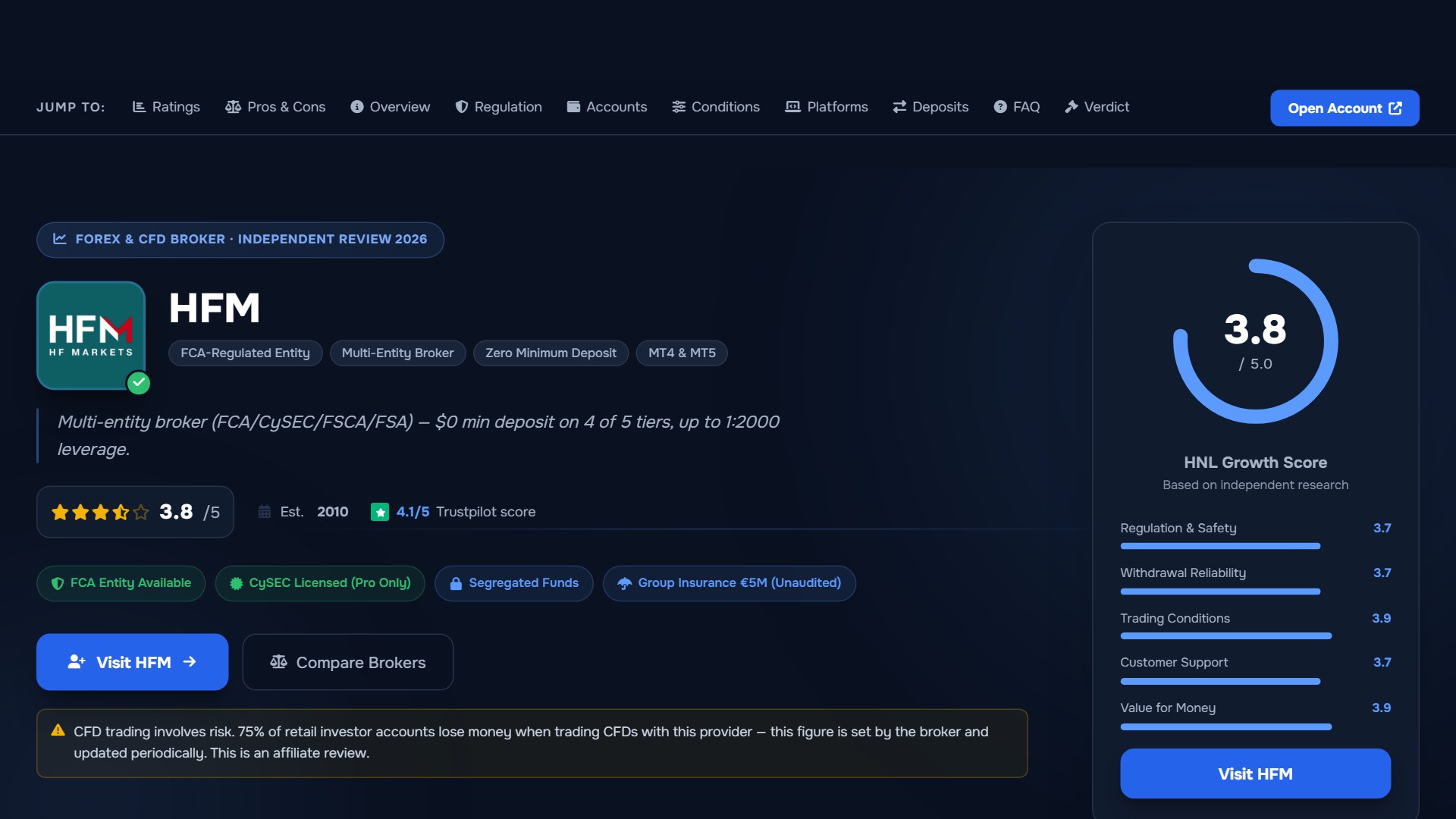
The HF Markets Group holds confirmed licences from CySEC (licence 183/12) and the FCA. HFM's website indicates additional regulatory presence in other jurisdictions. The specific entity and protections that apply depend on where you are onboarded — confirm this directly with HFM before opening an account.
What to Verify Yourself
Since platform features and terms can change, confirm the following directly with HFM or in your myHF client area before committing funds:
- Which HFM entity you will be onboarded under and what regulatory protections apply
- Current spread levels for your chosen account type and preferred instruments
- Whether supplementary tools — such as third-party plugin suites, automated pattern recognition services, or VPS hosting — are available, and what the eligibility and cost conditions are
- Exact leverage limits for your jurisdiction and account classification
- HFCopy compatibility with MT5 accounts
- The current full instrument list available on MT5 for your entity, including whether crypto CFDs are offered
Related: Server or password errors are covered in our MetaTrader 5 login guide.
Official sources: HFM official site (hfm.com) · MetaTrader 5 user guide (metatrader5.com).
Related Guides
Sources & verification
- Last checked
- Written by
- HNL Growth Team
- Reviewed by
- Hà Ngọc Lộc
- Length
- 11 min read · 2,619 words
Rules, prices and payout terms on this page were checked against the official websites, help-centre articles and published terms of the firms mentioned, on the date above. Prop firms and brokers change conditions often — confirm the current version on the official site before you buy or deposit. Read our broker review methodology and affiliate disclosure.
Official sources & documentation verified
- HFM official site(hfm.com)
- MetaTrader 5 user guide(metatrader5.com)
Explore Related Hubs & Free Trading Tools
Ready to Check HFM’s Current Offers?
HFM runs regional promotions, trading contests, and reward programs, but eligibility, caps, account types, and terms depend on your country and the HFM entity that onboards you. Check the current offer first, then review the full terms before opening or funding an account.
Risk disclaimer: HFM is a live, regulated multi-entity broker — trading forex and CFDs uses real capital under normal market risk. Promotions are not guaranteed, may not be available in every country or account type, and can change without notice; confirm the current official terms for the entity that will onboard you. CFDs and leveraged forex products are complex instruments and carry a high risk of losing money rapidly. Affiliate disclosure: HNL Growth earns a commission when you open an HFM account through links on this page.