MT4 WebTrader 2026: Trade in Browser
MT4 WebTerminal is a browser-based MetaTrader 4 version that lets you trade forex and CFDs in Chrome, Firefox, Safari, or Edge with no download.
Reviewed by Hà Ngọc Lộc· Senior SEO Editor
Reviewed using our forex & CFD broker review methodology
MT4 WebTerminal is a browser-based version of MetaTrader 4 developed by MetaQuotes that lets you trade forex and CFDs directly from Chrome, Firefox, Safari, or Edge — no software download required. The standard MetaQuotes MT4 WebTerminal specification includes 30 built-in indicators, 23 analytical objects, 9 timeframes, one-click trading, and full order management (market, limit, stop, and trailing stop orders).
What it does not include: Expert Advisors, custom indicators, Strategy Tester, MQL4 Market, or Trading Signals. If your strategy depends on automated trading or custom tools, the desktop terminal is the better choice.
Platform and entity availability note: HFM operates through multiple regulated entities globally. The MT4 WebTerminal is confirmed accessible via HFM's Seychelles (SC) entity. HFM's account comparison page lists "HFM WebTrader" alongside MetaTrader 5 as the web-accessible platforms for some account tiers — these may differ from the standard MetaQuotes MT4 WebTerminal. Which web platform is available to you, and which regulated entity governs your account, depends on your country of residence. Verify platform access with HFM before opening an account.
What You Can Do: MT4 WebTerminal Features
The features below reflect MetaQuotes' standard MT4 WebTerminal specification. HFM's implementation may vary — verify current feature availability on the platform page for your entity.
Trading operations
- Market execution and pending orders (buy/sell limit, buy/sell stop)
- Trailing stop functionality
- One-click trading for fast entry and exit
- Position modification (adjust SL/TP on open trades)
- Full trade history and account statement access
Charting and analysis
- 30 built-in technical indicators (moving averages, Bollinger Bands, RSI, MACD, Stochastic, and more)
- 23 analytical objects (trendlines, Fibonacci retracements, channels, shapes, text labels)
- 9 timeframes from M1 to MN
- Three chart types: candlestick, bar, and line
- Multi-chart workspace (limited compared to desktop)
Account management
- Market Watch with real-time quotes and symbol list
- Account balance, equity, margin, and free margin display
- Open position monitoring in the Terminal window
- Email alerts (when configured)
For traders who rely on standard technical analysis and manual order execution, the feature set is functional for day-to-day use.
What You Cannot Do: Web Terminal Limitations
Transparency about limitations matters before you commit time or capital. The MT4 WebTerminal is missing several features that advanced or automated traders depend on.
| Feature | Available on WebTerminal? |
|---|---|
| Expert Advisors (EAs) | ❌ No |
| Custom indicators (.ex4 / .mq4files) | ❌ No |
| Strategy Tester (backtesting) | ❌ No |
| MQL4 Market (paid tools and EAs) | ❌ No |
| Trading Signals (copy trading) | ❌ No |
| Offline charts | ❌ No |
| Multi-account management | ❌ No |
Why this matters: If you run any form of algorithmic or semi-automated strategy, the web terminal cannot execute it. If you use custom-built indicators or rely on backtesting before going live, you will need the desktop terminal.
The web terminal is a subset of the desktop experience — not a replacement.
MT4 Platform Comparison: Web vs. Desktop vs. Mobile
Feature counts below reflect MetaQuotes' standard MT4 specification.
| Feature | Web Terminal | Desktop | Mobile App |
|---|---|---|---|
| Expert Advisors / automated trading | ❌ No | ✅ Yes | ❌ No |
| Custom indicators | ❌ No | ✅ Yes | ❌ No |
| Built-in indicators | 30 | 30 | 30 |
| Chart timeframes | 9 | 9 | 9 |
| One-click trading | ✅ Yes | ✅ Yes | ✅ Yes |
| Strategy Tester | ❌ No | ✅ Yes | ❌ No |
| Trading Signals / copy trading | ❌ No | ✅ Yes | ❌ No |
| Multi-chart workspace | Limited | ✅ Full | ❌ No |
| Offline capability | ❌ No | ✅ Yes | ❌ No |
| Installation required | ❌ No | ✅ Yes | ✅ Yes (app) |
| Best for | Quick access, travel | Full-featured trading | On-the-go monitoring |
Choose the web terminal if you trade manually, work across multiple devices or operating systems, or need quick access from a shared or work computer where installation is not possible.
Choose the desktop terminal if you use Expert Advisors, custom indicators, backtesting, or need multi-chart workspaces for complex analysis.
Choose the mobile app if you need to monitor positions, adjust stop-losses, or execute simple trades while away from your desk.
How to Access MT4 WebTerminal with HFM
HFM provides web-based MT4 access to eligible account holders. The specific web platform available to you — MT4 WebTerminal or HFM WebTrader — and which regulated entity governs your account, depend on your account type and jurisdiction. Confirm platform access at each stage of the process below.
Step 1: Open an HFM account
Register at HFM and complete any required verification. A demo account lets you test the platform before committing capital. Before registering, confirm with HFM which web-based platform is assigned to your account type and entity.
Step 2: Receive your MT4 credentials
After account approval, HFM sends your MT4 login number, password, and server name via email. The server name is critical — selecting the wrong server is the most common login failure.
Step 3: Launch the WebTerminal
Navigate to the MT4 WebTerminal URL provided in your HFM account area. The terminal loads directly in your browser — no download or plugin required.
Step 4: Log in
Enter your login number, password, and select the exact HFM server name from the dropdown. If the correct server does not appear, clear your browser cache or contact HFM support.
Step 5: Configure and trade
Once logged in, your account balance and Market Watch populate automatically. Select an instrument, open a chart, and you are ready to place orders.
Open an HFM account to get started (the registration page offers both demo and live account options). Verify with HFM that a demo account provides access to the MT4 WebTerminal specifically, as platform assignment may depend on account type and entity.
Quick-Start Checklist: Your First Trade on HFM WebTerminal
- Open an HFM demo or live account (verification may apply for live accounts)
- Confirm MT4 WebTerminal is the platform assigned to your account type and entity
- Receive login credentials and MT4 server name via email
- Launch the MT4 WebTerminal URL in your browser
- Enter login, password, and select the correct HFM server
- Configure a chart: select an instrument, choose a timeframe, add indicators
- Place a test order with stop-loss and take-profit to validate your setup
- Review open positions in the Terminal window at the bottom of the screen
Completing a test trade with SL/TP on a demo account confirms that your connection, server, and order execution are working correctly before you risk capital.
Setting Up Your Workspace
Once logged in, the web terminal workspace mirrors the desktop layout with some simplifications:
- Market Watch (left panel): Right-click any symbol to open a chart or add it to your watchlist. Use "Show All" to display every available instrument.
- Chart window (centre): Click the timeframe buttons at the top to switch between M1 and MN. Use the Indicators menu to add built-in tools.
- Terminal window (bottom): Displays open trades, order history, account balance, and margin levels.
The web terminal does not support saving complex workspace templates the way the desktop version does. If you use a specific chart layout regularly, you may need to reconfigure it at each session.
Browser and Device Compatibility
MT4 WebTerminal runs in modern browsers across all major operating systems. It is not the HFM mobile app — it is a separate browser-based product.
The compatibility information below is based on MetaQuotes' general MT4 WebTerminal browser support documentation. Actual compatibility may vary by browser version, operating system release, and HFM entity configuration. Verify current compatibility with HFM before relying on a specific browser or OS combination.
| Browser | Windows | macOS | Linux | iPad | Android Tablet | Notes |
|---|---|---|---|---|---|---|
| Google Chrome | ✅ | ✅ | ✅ | ✅ | ✅ | Recommended for best performance |
| Mozilla Firefox | ✅ | ✅ | ✅ | ✅ | ✅ | Full feature support |
| Safari | N/A | ✅ | N/A | ✅ | N/A | Best option for iPad users |
| Microsoft Edge | ✅ | — | — | — | — | Chromium-based version; verify macOS and Linux availability with HFM |
Tablet users: The web terminal may render in tablet browsers (iPad Safari, Android Chrome), but the interface is designed for desktop-resolution screens. Expect smaller touch targets and a compressed layout on devices under 10 inches. This is distinct from the HFM mobile app, which is purpose-built for phone screens.
Linux users: The web terminal is the simplest way to access MT4 on Linux, since the desktop terminal requires Windows or a compatibility layer such as Wine.
Security and Session Management
Trading from a browser introduces considerations that the desktop terminal does not.
Connection security: The web terminal communicates with the broker's trade server over an encrypted connection. Your credentials and trade data are transmitted securely.
Session timeout: After a period of inactivity, the web terminal will disconnect your session. When this happens, your open positions remain active on the server — they are not closed by a timeout. You simply log back in to resume. To avoid unintended disconnections during active sessions, interact with the terminal periodically (scroll a chart, click Market Watch).
Public and shared computers: If you trade from a hotel business centre, library, or shared workstation:
- Always log out explicitly when finished — do not rely on the session timeout
- Never allow the browser to save your MT4 password
- Use a private/incognito browser window so no session data persists
- Verify the URL is the official HFM web terminal address before entering credentials
Support responsibility: HFM handles account-related issues (login credentials, server selection, funding). MetaQuotes develops the MT4 platform software. If you encounter a platform bug, report it through HFM support, who will escalate to MetaQuotes if needed.
Which Trading Styles Work on WebTerminal?
Not every strategy suits a browser-based terminal. Use this matrix to assess fit.
| Trading Style | WebTerminal Suitability | Notes |
|---|---|---|
| Manual day trading | ✅ Good | Full order types and charting tools available |
| Swing trading | ✅ Good | Holding positions across sessions works well; session timeout does not affect open trades |
| Position management | ✅ Good | Adjusting SL/TP, closing partial lots, monitoring margin |
| Scalping | ⚠️ Limited | Browser latency and lack of one-tick charting make high-frequency scalping impractical |
| EA / automated trading | ❌ Not possible | Expert Advisors cannot run in the web terminal |
| News trading | ⚠️ Limited | Latency-sensitive execution during high-volatility events is better handled on desktop |
If your primary approach involves manual entries with standard indicators, the web terminal covers your needs. If you rely on automation, sub-second execution, or custom-built tools, use the desktop terminal as your primary workspace and the web terminal as a backup for position monitoring.
Common Issues and Quick Fixes
| Issue | Possible Cause | Quick Fix |
|---|---|---|
| Cannot log in | Wrong server selected | Verify your HFM server name from the welcome email and select it exactly |
| Charts not loading | Browser compatibility or slow connection | Switch to Chrome or Firefox; check your internet speed |
| Order execution delayed | High latency or extreme market volatility | Refresh the page; consider desktop for latency-sensitive strategies |
| Session timed out | Inactivity beyond timeout threshold | Log back in — your open positions and history are preserved on the server |
| HFM server not listed | Outdated server list or cached data | Clear browser cache and cookies, then reload the terminal |
| Browser warning or errors | Unsupported or outdated browser version | Update your browser to the latest version or switch to Chrome |
If login issues persist after trying these fixes, contact HFM support directly — they manage account credentials and server configuration.
Related: MetaTrader 4 login · What is MetaTrader?
Official sources: MetaTrader 4 user guide (metatrader4.com).
MT4 WebTrader: Your Questions Answered
Can I use Expert Advisors on the MT4 WebTerminal?
No. The web terminal does not support EAs or any form of automated trading. Download the MT4 desktop terminal from HFM if you need automated strategies.
Is MT4 WebTerminal free to use?
The platform itself carries no separate fee. However, standard broker trading costs apply — spreads, commissions (where applicable), and overnight swap charges. Check HFM's trading conditions for the costs that apply to your account type.
Who do I contact if I cannot log in?
Contact HFM support for login, password, and server issues. MetaQuotes develops the platform software but does not manage individual broker accounts.
Can I switch between multiple MT4 accounts on the web terminal?
You can log out and log back in with different credentials. However, the web terminal does not support managing multiple accounts simultaneously — for that, the MT4 MultiTerminal on desktop is the appropriate tool.
Does the web terminal work on tablets?
It may work in tablet browsers such as iPad Safari and Android Chrome, but the interface is optimised for desktop-resolution screens, so the experience on smaller tablets may feel cramped. It is not the same as the HFM mobile app. Verify current tablet compatibility with HFM before relying on it.
How do I close an open position?
Click the "x" on the right side of the position row in the Terminal window, or right-click the position and select "Close Order." One-click trading, if enabled, allows instant closing without a confirmation dialogue.
Will my open trades be affected if the web terminal disconnects?
No. Your trades remain active on HFM's trade server regardless of whether the web terminal is open. Pending orders, stop-losses, and take-profits continue to function.
Does HFM offer MT4 WebTerminal in my country?
HFM operates through multiple regulated entities, and platform availability varies by jurisdiction. HFM does not offer services to residents of certain countries, including the USA, Canada, and several others. The MT4 WebTerminal is confirmed accessible via HFM's SC (Seychelles) entity. Contact HFM support or check the platform page for your entity to confirm availability for your region and account type.
Get Started: Demo or Live Account
If MT4 WebTerminal fits your trading style, the lowest-risk way to confirm compatibility is a demo account. You can test charting tools, order execution, and the full login workflow without committing capital. Before registering, confirm with HFM that a demo account provides access to the MT4 WebTerminal specifically, as platform assignment may depend on account type and entity.
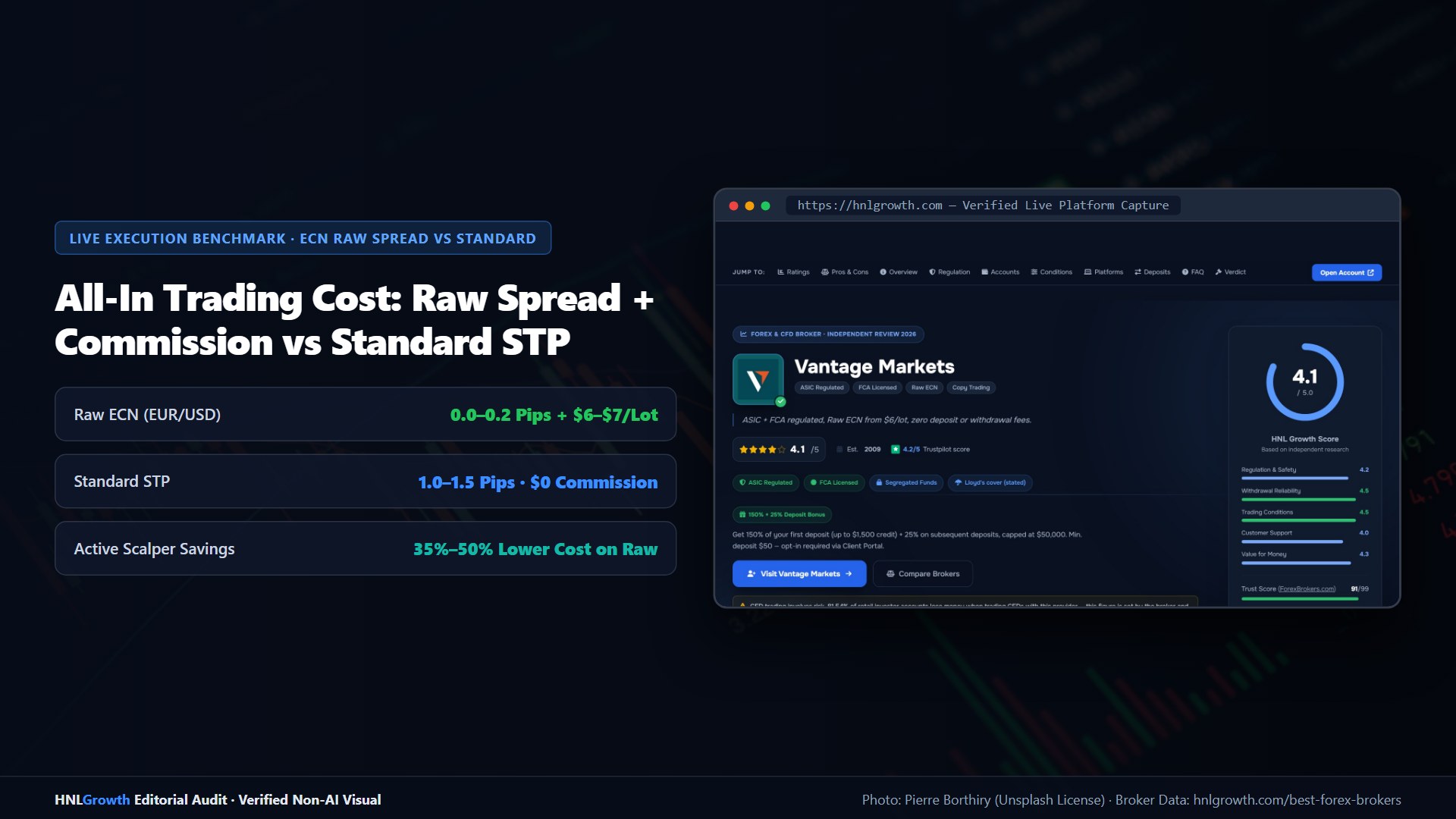
If you have confirmed the feature set meets your needs and are ready to trade with real capital, a live account gives you access to HFM's full instrument list. HFM offers variable spreads across account types; accounts with zero-spread pricing are available from 0.0 pips — note that zero spread quotes are delayed and commissions apply on those account types. Check HFM's account comparison page for the full cost structure applicable to your chosen tier.
If you determine that the web terminal's limitations (no EAs, no custom indicators, no Strategy Tester) rule it out for your strategy, HFM also offers the MT4 desktop terminal, MT5, and the HFM mobile app.
Open an HFM account to access MT4 WebTerminal, or compare HFM account types to find the right fit for your trading style.
Related Guides
Sources & verification
- Last checked
- Written by
- HNL Growth Team
- Reviewed by
- Hà Ngọc Lộc
- Length
- 11 min read · 2,444 words
Rules, prices and payout terms on this page were checked against the official websites, help-centre articles and published terms of the firms mentioned, on the date above. Prop firms and brokers change conditions often — confirm the current version on the official site before you buy or deposit. Read our broker review methodology and affiliate disclosure.
Official sources & documentation verified
- MetaTrader 4 user guide(metatrader4.com)
Explore Related Hubs & Free Trading Tools
Ready to Check HFM’s Current Offers?
HFM runs regional promotions, trading contests, and reward programs, but eligibility, caps, account types, and terms depend on your country and the HFM entity that onboards you. Check the current offer first, then review the full terms before opening or funding an account.
Risk disclaimer: HFM is a live, regulated multi-entity broker — trading forex and CFDs uses real capital under normal market risk. Promotions are not guaranteed, may not be available in every country or account type, and can change without notice; confirm the current official terms for the entity that will onboard you. CFDs and leveraged forex products are complex instruments and carry a high risk of losing money rapidly. Affiliate disclosure: HNL Growth earns a commission when you open an HFM account through links on this page.